Dual-Display Stand Comparison: Stability First
By Maya Okafor • 31st Mar
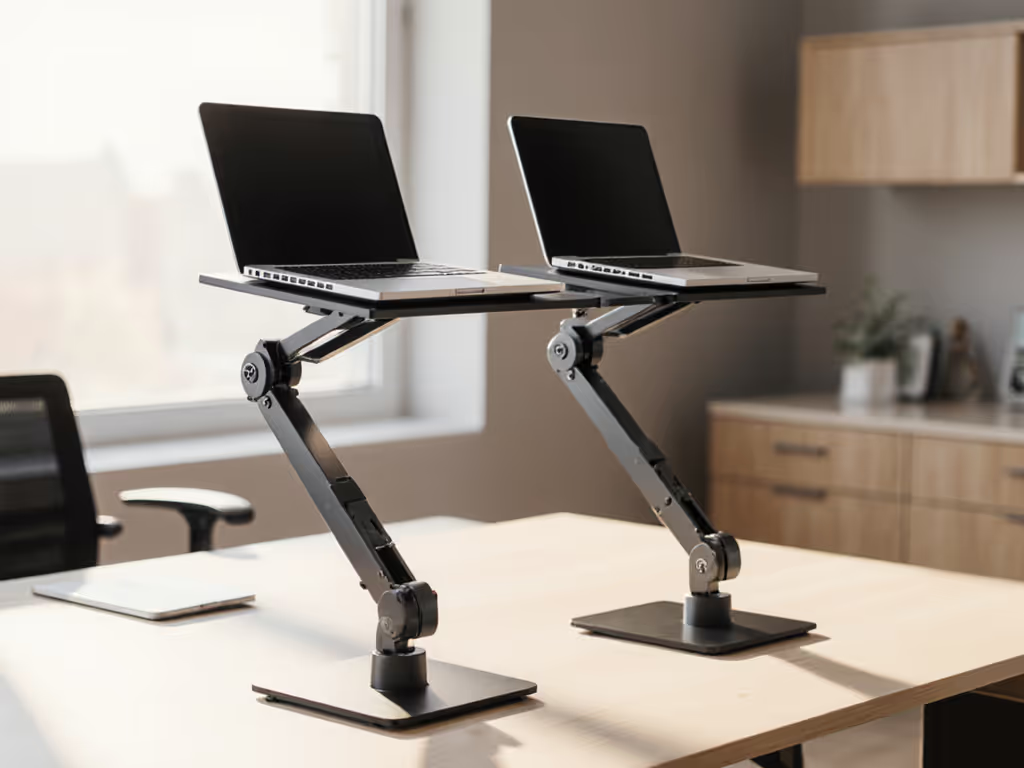
When you're running two screens (whether that's a dual laptop vertical stand setup or a laptop alongside an external monitor), stability becomes non negotiable. A wobbling stand throws off your posture, slows your workflow, and makes video calls look unprofessional. Yet most dual display stand comparison guides skip the hard part: measuring what actually matters before you buy.
This guide walks you through the three measurements that determine whether a dual screen stand will hold steady on your desk, with your devices, at your height. Start with measurements, not vibes, and find your beginner friendly fit.
Step 1: Capture Your Three Essential Measurements
Stability starts with knowing your space and your equipment. You need three numbers.
Measurement 1: Eye Level Height Stand in your normal work posture (feet flat, shoulders relaxed, elbows bent at roughly 90 degrees). Have someone measure from the floor to your eye level. If you're between sizes, take the midpoint. This is your target screen height, the magic number that determines how much lift your dual stand must provide. If you want the exact number for your setup, use our eye-level stand height calculator.
Why this matters: A stand that places screens 2-3 inches too low forces your neck into constant forward tilt. One that's too high causes shoulder strain. For dual screen setups, both screens should sit at or just below eye level; if they cannot both hit that zone, the secondary screen (typically placed slightly lower) becomes the constraint.
Measurement 2: Desk Depth From the front edge of your desk to the wall (or the back of your desk surface), measure straight back. Write this down in inches. Many compact dual stand designs need 8-10 inches of depth; others need 12 or more.
Why this matters: A stable stand must sit far enough back on the desk that its center of gravity stays within the surface. A stand perched too close to the edge will tip or wobble under typing load. Depth also affects cable routing, since stands cramped against the wall create a kink.
Measurement 3: Your Laptop(s) Weight and Footprint Weigh each device on a bathroom scale or check the spec sheet. Measure the width and depth of the widest device. For dual setups, the combined weight matters; a stand rated for 2×8 lbs will not safely hold two 5 lb ultrabooks or a 7 lb and a 6 lb combo.
Why this matters: A stand with a low weight rating will sag or creep downward over weeks of use. Heavy laptops also shift the center of gravity forward and down, magnifying any wobble. A stable dual stand must be overbuilt, rated for at least 1.5× your actual load.
Start with measurements, not vibes. These three numbers (your eye level height, desk depth, and laptop weight) are your non negotiable specs.
Step 2: Understanding Stability in Dual Screen Stands
Stability in a dual laptop vertical stand depends on five factors working together. Understanding each helps you compare apples to apples.
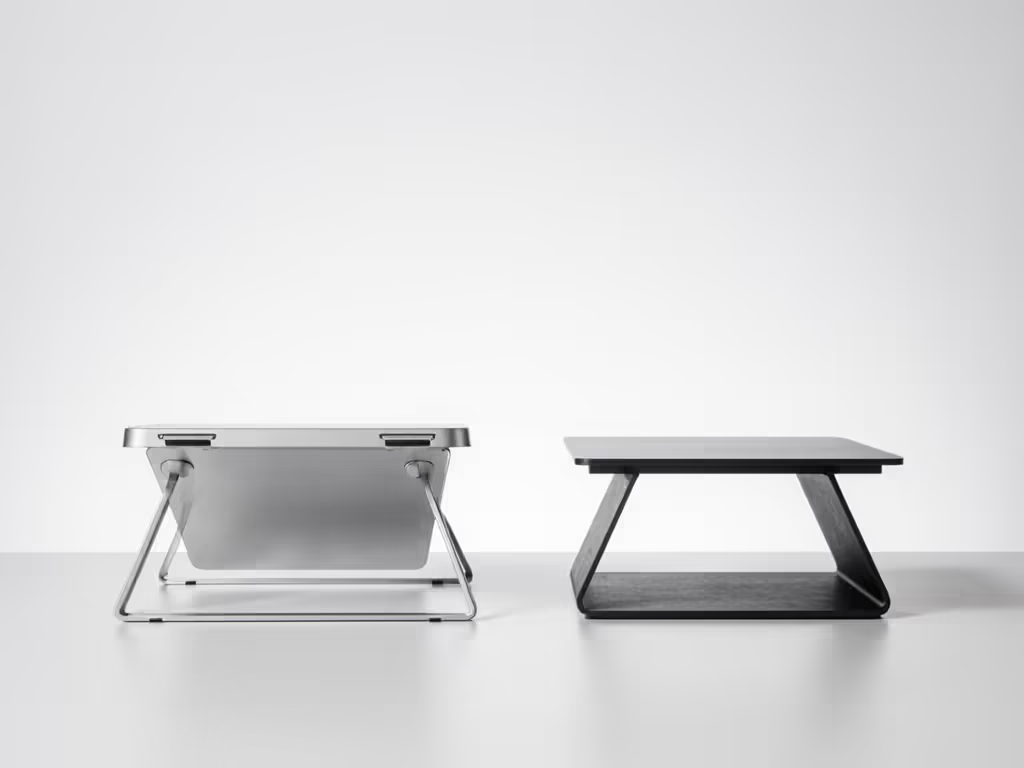
Base Footprint and Weight Distribution A wider, heavier base keeps the stand from tipping. Look for a footprint of at least 8-10 inches front to back and 6-8 inches side to side. The base should be weighted or dense enough that the stand does not shift when you type. Aluminum stands are often more stable than plastic for this reason, since they are heavier and distribute load better.
Hinge and Mechanical Rigidity A dual stand's hinges must resist creep, the gradual slipping downward that happens under the weight of your laptops and the repeated stress of adjustment. Better hinges use ball bearing or friction lock mechanisms rather than simple friction pads. Test this by pushing gently on the screen edge; minimal play is the sign of a rigid hinge.
Slot Design and Laptop Clamping How does each slot hold a laptop upright? Some stands use friction pads (rubber or silicone), others use adjustable clamps, and a few use angled slots that use the laptop's own weight to stay put. Friction pad designs are forgiving and fit a range of thicknesses. Clamping designs are more precise but can scratch aluminum. Angled slots are stable but only work for certain laptop thicknesses.
Center of Gravity Alignment For a dual stand to be stable, the combined weight of two laptops must sit directly above the base, not in front of it. If the stand is too short or the base too narrow, the load tips forward and the stand rocks. This is why desk depth matters, because a stand placed too close to the desk edge will always feel precarious, regardless of hinge quality.
Vibration Damping and Resonance When you type on an elevated laptop, vibrations travel through the stand. A wobbly stand amplifies these vibrations, making it feel unstable even if it will not actually tip. Better stands use rubber feet or damping materials that absorb vibration. Aluminum frames with internal ribbing (visible in product photos as a thicker, reinforced interior) also reduce resonance. If your desk is glass, metal, or soft wood, check our desk surface stability tests before choosing feet materials.
Step 3: The Three Measurement Method for Dual Stand Comparison
Now take your three measurements to a spreadsheet or a simple table. For each stand you're considering, find or estimate these specs:
Can It Reach Your Eye Level? Add the stand's maximum lift height to your keyboard height (typically 0.5-1 inch when the stand is on the desk). Compare to your target eye level number. If the math falls short by more than 1 inch, keep looking, because it will not feel right after a week of use.
Heavier 16 inch workstation laptops need a stand rated for at least 8 lbs per slot. A stand that works beautifully with two ultrabooks may sag under a pair of 6 lb business laptops.
Does It Fit Your Desk Depth? The stand's footprint plus 2 inches of clearance in front must fit your desk. If your desk is 24 inches deep, a stand with a 10 inch footprint leaves only 14 inches for your keyboard and mouse (cramped). Ideal: aim for at least 18 inches of usable depth after the stand is placed.
Is the Weight Rating Safe? Take your combined laptop weight, multiply by 1.5, and compare to the stand's rated capacity. If you're running two 5 lb laptops (10 lbs total), look for a stand rated for at least 15 lbs. This safety margin prevents creep and ensures the stand stays rigid over time.
Step 4: Stability Comparison Framework - Five Key Specs
When you're reviewing stands, use this framework to compare stability directly:
Base Width and Depth
- Narrow (<6 inches wide): Tippy. Avoid for dual screens.
- Standard (6-8 inches wide, 8-10 inches deep): Acceptable for most setups; pair with careful center of gravity positioning.
- Wide (>8 inches wide, 10-12 inches deep): Excellent; most users will not wobble.
Hinge Type
- Friction pad alone: Good for light, occasional adjustment; may creep under heavy, continuous load.
- Friction + ratchet or click-stop: Better; holds position longer.
- Ball-bearing or friction lock: Best; resists creep almost entirely.
Material
- Plastic frame: Lighter, more affordable, slightly more flex; fine for sub 5 lb ultrabooks.
- Aluminum frame: Heavier, stiffer, better for 6+ lb laptops and dual screens.
Weight Rating per Slot
- 4-5 lbs: Ultralight only.
- 6-7 lbs: Most modern laptops; safe margin for 5 lb devices.
- 8+ lbs: Workstations and heavier business laptops; best for dual 6-7 lb devices.
Vibration Damping (Feet)
- Hard plastic or metal: Transmits vibrations; feels buzzy when typing.
- Rubber or silicone feet: Absorbs vibrations; feels solid and quiet.
Step 5: Stability in Practice - Dual Screen Ergonomics
A stable stand is only half the story. Position matters too, especially with dual screen laptops or any dual two screen workstation setup. For layouts where your external monitor is primary and the laptop is secondary, follow our dual display ergonomics guide.
Asymmetric Load Handling If one laptop is heavier, place it in the lower (closer to desk edge) slot of your dual stand. This lowers the center of gravity and stabilizes the entire structure. Test this by gently pushing on each screen's top edge; minimal rocking indicates good balance.
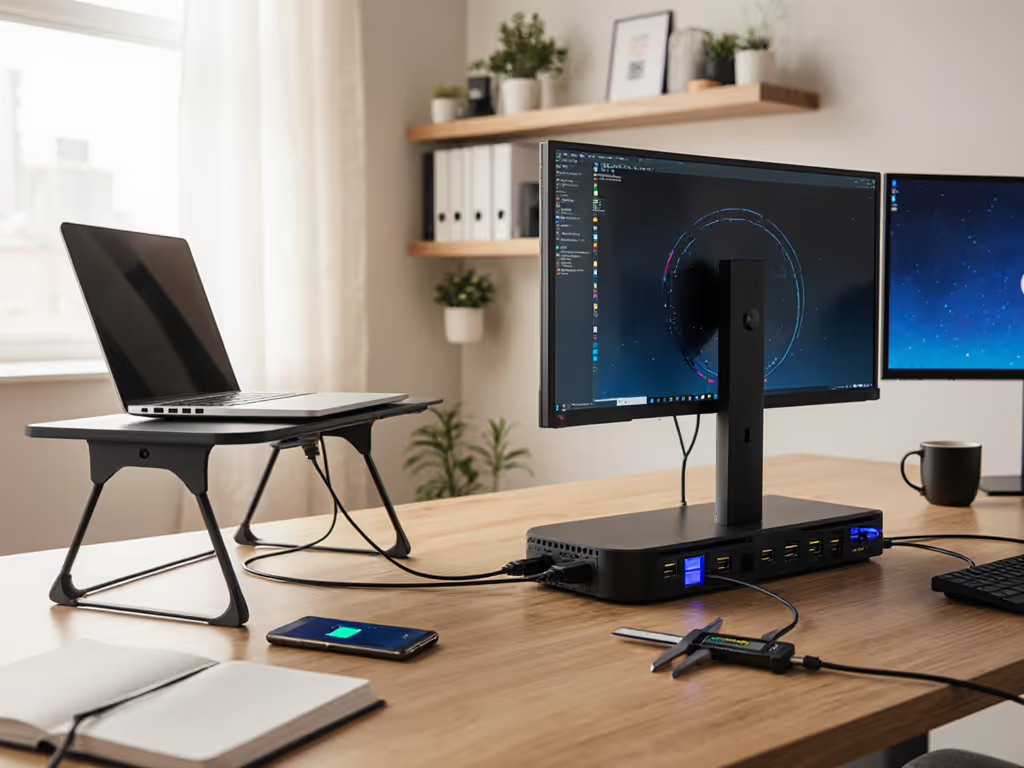
Cable Routing and Stability Routing cables along the back of the stand adds friction, which can stabilize it, but it can also kink cables and block airflow. Route heavy USB-C or Thunderbolt cables along the side of the stand frame, not across the hinge, to avoid pulling the stand off balance. See our step-by-step laptop stand cable management tutorial to keep things stable and tidy.
Keyboard and Peripheral Positioning The more you extend your keyboard forward (away from the stand), the easier it is to type without rocking the stand. If you place your keyboard directly under the screens, any keystroke jostles the stand. Ideal: keyboard at least 6 inches in front of the stand's base.
Monitor Arm Compatibility For dual screen ergonomics, some users pair a vertical laptop stand with an external monitor arm. If you're doing this, ensure the stand's footprint does not overlap the monitor arm's base. A 12 inch deep stand with an 8 inch deep monitor arm base on a 24 inch desk creates a squeeze.
Step 6: Building Your Comparison Table
Gather 3-4 stands that meet your three essential criteria (reach your eye level, fit your desk depth, and have safe weight ratings). Then rank them on these stability traits:
| Stability Trait | Stand A | Stand B | Stand C | Your Priority? |
|---|---|---|---|---|
| Base width (inches) | 7 | 9 | 6 | At least 8 |
| Hinge type | Friction pad | Friction + ratchet | Ball-bearing | Ratchet or better |
| Material | Plastic | Aluminum | Aluminum | Aluminum |
| Weight rating (lbs) | 12 | 16 | 10 | At least 15 |
| Vibration dampening | Plastic feet | Rubber feet | Silicone feet | Rubber/silicone |
| Estimated cost | $30 | $55 | $45 |
The stand that matches your priorities in at least 4 of the 5 categories is your strongest candidate. Do not chase perfection on all five; prioritize the ones that matter most to your desk setup and work style.
Actionable Next Step: Measure, Compare, and Test
Take your three measurements today. Right now: measure your eye level, desk depth, and your laptop(s) weight. Write them down, take a photo, and keep them in your phone.
Then, visit product pages for 3-4 dual stands that interest you. To compare real-world options side by side, start with our dual laptop vertical stands for multi-monitor workspaces roundup. Use the stability comparison framework above to score each one. Pay special attention to hinge type and base width; these two factors account for roughly 70% of real world stability.
Before you buy, if possible, test the stand in a showroom or borrow one from a colleague for a day. Push gently on the top of each screen slot while it's empty, then again while it's holding a laptop. Minimal play and no creaking are good signs. If you feel sag after 30 minutes of typing, that stand is under engineered for your load.
Stability is not glamorous, but it is the foundation of a dual screen setup that works. Measure first, compare by spec, and commit to a stand that is rated for more than you need. Your neck and your focus will thank you.
Related Articles