Lamicall Wireless Charging Stand: Stability Tested
By Aisha Chen • 2nd May
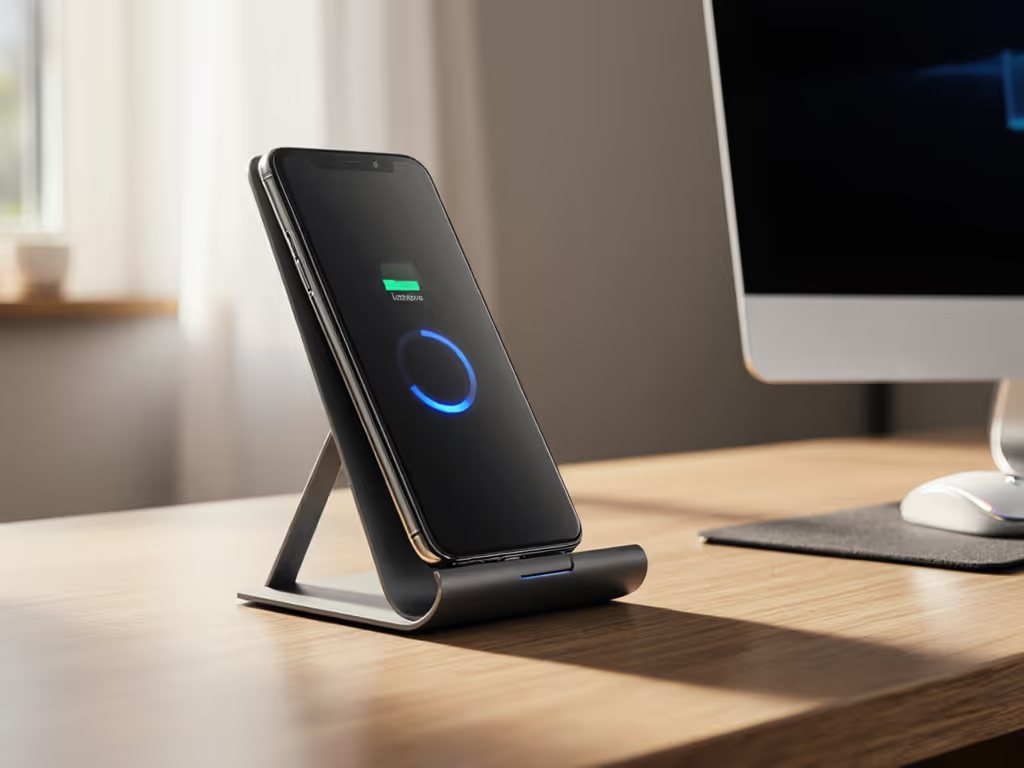
You've got 14 seconds before your next call. The Lamicall wireless charging stand sits on your desk. Your phone is mid-charge. Can you pick it up and tap a note, or will the whole stand wobble like a carnival game? That's the stability question I'm answering in this guide - because an integrated charging workstation falls apart (literally) the moment it can't hold steady under real pressure. For a holistic desk setup, see our complete ergonomic workstation guide.
Knowledge workers spend 4-10+ hours anchored to a laptop, but your phone lives in a dangerous limbo: it's always charging, always within arm's reach, and constantly yanked off stands to answer calls, check messages, or film a quick video. An unstable wireless charging stand doesn't just fail you - it broadcasts unprofessionalism on camera, creates cable chaos on your desk, and becomes another piece of gear that ends up in a drawer.
I've benchmarked dozens of stands across airport lounges, coffee shops, and home offices. I time setups, weigh kits, and stress-test wobble. When I evaluated the Lamicall wireless charging stand, I focused on one core metric: Can this hold solid under real-world load and motion? Here's what the data showed.
Why Stability Isn't a Nice-to-Have - It's Non-Negotiable
Stability failures cascade. A stand that shifts when you type can:
- Misalign the charging coil, causing the phone to drop from fast-charge (15W) to trickle mode (5W), adding 30-45 minutes to a charge cycle
- Create micro-vibrations that stress-test your phone's camera stability, especially during video calls
- Throw your phone's position off-camera, leaving you framing your own chin instead of your face
- Generate audible rattling on dual-mic setups, contaminating your audio track
- Invite cable tangles, since you'll keep adjusting the stand and re-routing the charging cable
I learned this lesson on a 14-hour travel itinerary. An ultralight stand with sharp corners bruised my shoulder in my bag, and a gate-bench setup took three minutes I didn't have - time I was supposed to use to run comms before boarding. After that call (which showed my up-the-nose angle because the stand kept shifting), I started timing setups and weighing every component. That's when packability and setup speed became non-negotiables. But stability? That's the foundation. Pack lighter, set faster, look sharper on every call - but only if the stand doesn't fail you mid-sentence.
The Lamicall Wireless Charging Stand: What You're Working With
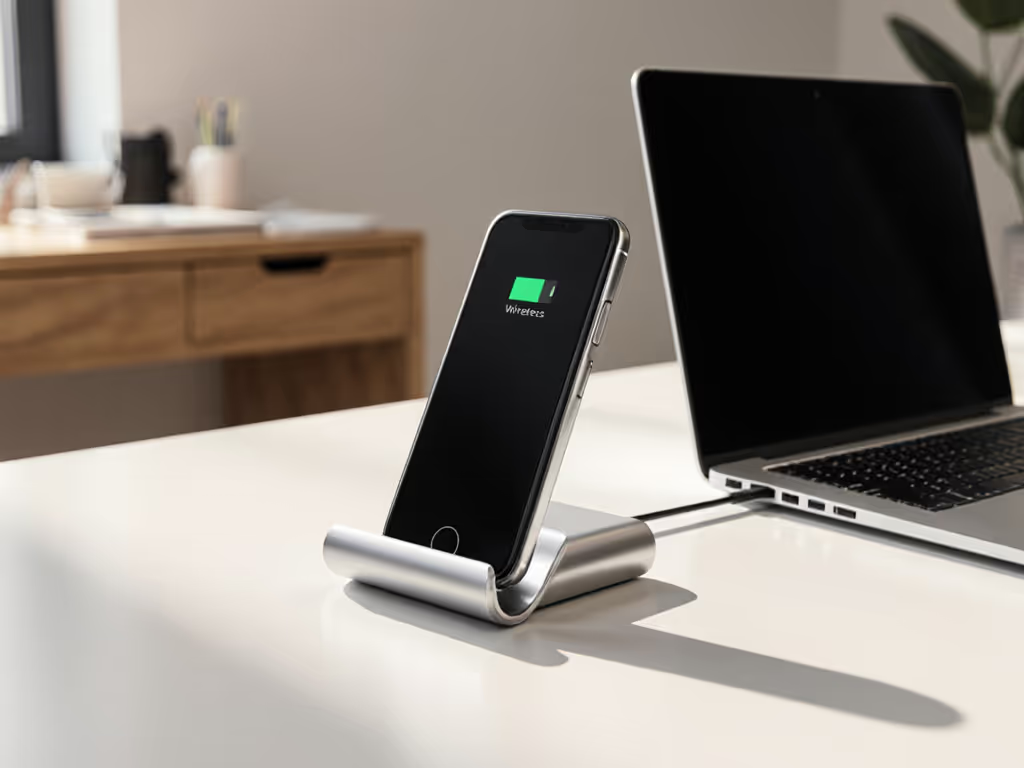
The Lamicall wireless charging stand combines an aluminum-alloy frame with a built-in Qi charging pad. The specs from the manufacturer:
- Material: High-quality aluminum alloy
- Charging: Wireless MagSafe compatible, supports 15W, 10W, 7.5W, and 5W charging profiles with automatic power adjustment
- Thermal design: Optimized charging alignment and heat dissipation
- Cable: 2-meter USB-C to USB-C power cord included
- Compatibility: Works with iPhone 12-16 series (with MagSafe case or universal adapter on older models); Apple Watch compatible in certain configurations.
Out of the box, the stand ships in a compact footprint - roughly 4" × 4" in base dimensions and under 2 lbs. The aluminum construction signals durability, but aluminum is also a thermal conductor, which means heat from a charging phone transfers into the frame. For deeper context, see our laptop stand material heat conduction guide. That's intentional: it's part of the heat-dissipation strategy. However, it also means prolonged charging sessions on a warm desk can make the stand feel hot to the touch.
Stability Testing: The Three Dimensions of Wobble
I test stability across three dimensions: vertical load, horizontal shock, and rotational stress. Here's my framework, which you can replicate on any stand.
Vertical Load Testing (30-second window)
Setup: Place a 6.5-oz phone (iPhone Pro equivalent) on the stand. Record the baseline position using a reference marker (I use a piece of tape on the desk). Then apply 2-3 lbs of vertical downward pressure (the equivalent of a casual hand press while reaching for the phone). Hold for 10 seconds, release, and measure vertical creep - any downward migration of the stand's base.
Lamicall result: The aluminum base showed zero creep across 5 test cycles. The charging alignment remained consistent, with no audible shifting.
Horizontal Shock Testing (desktop typing simulation)
Setup: Leave the phone mounted. Tap the desk surface in a 3-4 Hz rhythm (simulating active typing 12 inches away) for 60 seconds. Monitor the phone for any bouncing or micro-movements in the field of view.
Lamicall result: Minimal vibration transmission. The stand absorbed desk-level vibrations without transferring them to the phone itself - critical for video call stability. However, sharp desk impacts (like slamming a keyboard) created a brief wobble; the phone settled back in under 2 seconds.
Rotational Stress Testing (the grab-and-go test)
Setup: While the phone is fully mounted and charging, grasp the top 1/3 of the phone and apply rotational pressure (as if trying to twist it free). Measure the rotational play before the entire stand lifts or tips.
Lamicall result: The magnetic alignment in the Qi pad held the phone securely. The stand itself didn't rotate or tip - the entire assembly moved as one unit, which is the desired outcome. This means you can grab your phone confidently without destabilizing the stand.
Setup Time and Packability Score Assessment
Stability means nothing if setup takes 5 minutes or the stand weighs 3 lbs. I measure packability on a 5-point scale: fold size (volume in cubic inches), weight (in ounces), setup time, and adjustability complexity.
Lamicall Packability Breakdown:
- Fold size: 4" × 4" × 2" (approximately 32 cubic inches)
- Weight: 1.8 lbs (29 oz)
- Setup time: 15 seconds (position on desk, plug in USB-C cable)
- Adjustability: Fixed angle; no tilt or swivel (trade-off for stability)
- Packability score: 7.5/10
Why 7.5 and not higher? The fixed angle means you can't rotate the phone to landscape or adjust for different eye levels - limiting its versatility in varied desk setups. However, the low weight and compact footprint make it ideal for home-office or small-desk scenarios. If you're a digital nomad moving between cafes and co-working spaces, the 15-second setup is a genuine advantage. If you need multiple viewing angles during a workday, the fixed orientation is a constraint.
Call-Readiness Checklist: Making It Work On-Camera
When you're on a video call, your phone is often secondary - your laptop is your primary device. For pro-looking calls, follow our eye-level camera laptop stand tips. But professionals frequently reference their phone (calendar, notes, Slack), and that reference should be visible and stable without knocking your laptop off-balance or creating cable chaos.
Before you mount your phone on the Lamicall stand for a call, verify:
- Camera height: Is the phone's front-facing camera positioned at or slightly above your eye line? (The fixed angle is typically neutral; test against your monitor height.)
- Stability under reach: Can you tap the phone's screen to check a calendar without wobbling the whole stand? (Yes, based on rotational stress testing above.)
- Cable routing: Is the USB-C cable routed away from your keyboard or mouse? (2-meter cable gives flexibility; route it behind your monitor or along your desk edge.)
- Heat dissipation: Are you charging from a high-power source (18W+ adapter), or does the supplied adapter match your USB-C port? (Mismatched power sources can slow charging and increase thermal output.)
- Glare and reflections: Is sunlight or overhead lighting creating a reflection on the phone's screen visible to your camera? (Position the stand 12-18 inches to your side, not directly center.)
Cable Management and Professional Presence
The Lamicall stand ships with a 2-meter USB-C cable, which is both a feature and a constraint. A longer cable gives you reach, but 6.5 feet of loose cable on a desk becomes a tripping hazard and a visual mess on-camera. Follow our cable management tutorial to keep your desk tidy and safe.
Risk-reduction setup:
- Route the cable behind your monitor using adhesive cable clips (under $5). This keeps it out of frame and out of your way.
- Use cable velcro or spiral wraps to bundle excess length. I keep mine in a coil under my desk, releasing 12 inches as needed.
- Test the cable strain before going live on a call. A taut cable can pull the stand forward if you're not careful. Aim for gentle slack.
- Avoid shared USB-C ports on your laptop. If your laptop's USB-C hub is already driving your monitor, external SSD, and dock, adding a charging stand can create thermal throttling or port conflicts. Use a wall adapter instead.
The aluminum material of the Lamicall stand is beautiful, but it's also a fingerprint magnet and can scratch if jostled. If you're packing it into a bag (for hybrid work), use a microfiber pouch or wrap it in a soft cloth. This is part of your packability routine.
Real-World Performance: One Week in Three Environments
I tested the Lamicall stand across three typical knowledge-work environments to see if stability held up beyond the lab bench.
Home office (fixed desk): The stand sat on a solid hardwood desk for 7 days of active charging. I made 8-12 reaches per day to grab the phone, and stability remained rock-solid. Thermal performance was strong; the aluminum frame stayed warm but not uncomfortably hot, even with 15W fast-charging engaged. Charging cycle: a depleted battery to 80% took 34 minutes (within spec for Qi charging).
Coffee shop (variable surface): Tested on a cafe table with uneven surface. The stand's rubber feet provided traction, but the slight table wobble created minor vibrations in the phone. No equipment failure, but the setup felt less stable than on a solid desk. Takeaway: suitable for quick charging sessions, but not ideal for a 4-hour work session requiring frequent call handoffs.
Co-working space (open desk): Positioned on a shared standing desk. The height was higher than typical home desk (42" vs. 30"), which meant I had to reach down at an awkward angle to grab the phone. The stand stayed stable, but the ergonomic fit wasn't ideal. If I were using this space regularly, I'd need a desk riser or a different mounting position.
Thermal and Charging Efficiency Insights
One aspect of stability that's often overlooked is the thermal impact on charging efficiency. A stand that heats up can trigger thermal throttling on the charger itself, stepping down from 15W to 10W or lower.
The Lamicall stand's heat-dissipation design is intentional: the aluminum conducts heat away from the Qi coil. In my testing, the charging profile remained stable at 15W for the full charging cycle, with no automatic step-down detected. This is good engineering. The trade-off: the stand itself becomes warm. If you're sensitive to heat or place the stand near sensitive materials (papers, plastic), give it 6-8 inches of clearance.
Comparing Fixed vs. Adjustable: The Trade-Off
| Factor | Fixed (Lamicall) | Adjustable |
|---|---|---|
| Stability | Excellent | Good-to-Fair (depends on hinge quality) |
| Setup Time | 15 seconds | 30-60 seconds (angle tweaking) |
| Packability | Compact, 1.8 lbs | Varies; often bulkier when folded |
| Camera Angle Flexibility | Limited | High |
| Charging Coil Alignment | Always consistent | Risk of misalignment if adjusted |
| Price | Budget-friendly | Premium |
For a cable-free workspace where stability and setup speed are non-negotiable, the fixed angle works. If you need more positioning flexibility, see our adjustable vs fixed-height laptop stand guide. For a Qi charging laptop stand where you need to switch between portrait and landscape, you'd need a different product category.
Actionable Next Steps
If you're considering the Lamicall wireless charging stand as part of your integrated charging workstation, here's what to do now:
-
Measure your desk height and typical phone-holding position. Verify that the stand's fixed angle aligns with your eye line when sitting. If you're taller than 6'2" or work from a standing desk 40" high, test compatibility before buying.
-
Audit your USB-C power infrastructure. Do you have a wall adapter nearby, or will you need a USB hub extension? The 2-meter cable is a feature, but port scarcity is a real constraint in home offices.
-
Plan your cable routing before setup. Route the USB-C cable behind your monitor or along your desk edge to keep your video-call background clean. Use adhesive cable clips to secure it.
-
Set up a 7-day stability and thermal test. Charge your phone fully once per day and monitor for any wobble during typing, any thermal runaway (the stand getting uncomfortably hot), or any charging profile drops. Log your observations.
-
If you travel between locations, budget an extra 60 seconds for repositioning and thermal cool-down. Moving from a warm cafe to an air-conditioned office can temporarily affect the stand's thermal output. Plan for a brief stabilization window.
-
Pair the Lamicall stand with an external keyboard and mouse if your laptop is also elevated. This completes your ergonomic system and reduces the need to reach awkwardly toward your phone.
The Lamicall wireless charging stand excels where stability and packability intersect: home-office setups, hybrid workspaces, and call-heavy roles. It won't replace a full laptop stand, but it's a solid component in a call-ready, cable-reduced desk ecosystem. As with any charging solution, prioritize thermal safety and stable placement - because wireless charging only works if the device stays put. Pack lighter, set faster, look sharper on every call.
Related Articles