
Ergonomic Laptop Stand: Blink Rate & Dry Eyes
By Priya Raman • 24th Apr
Introduction
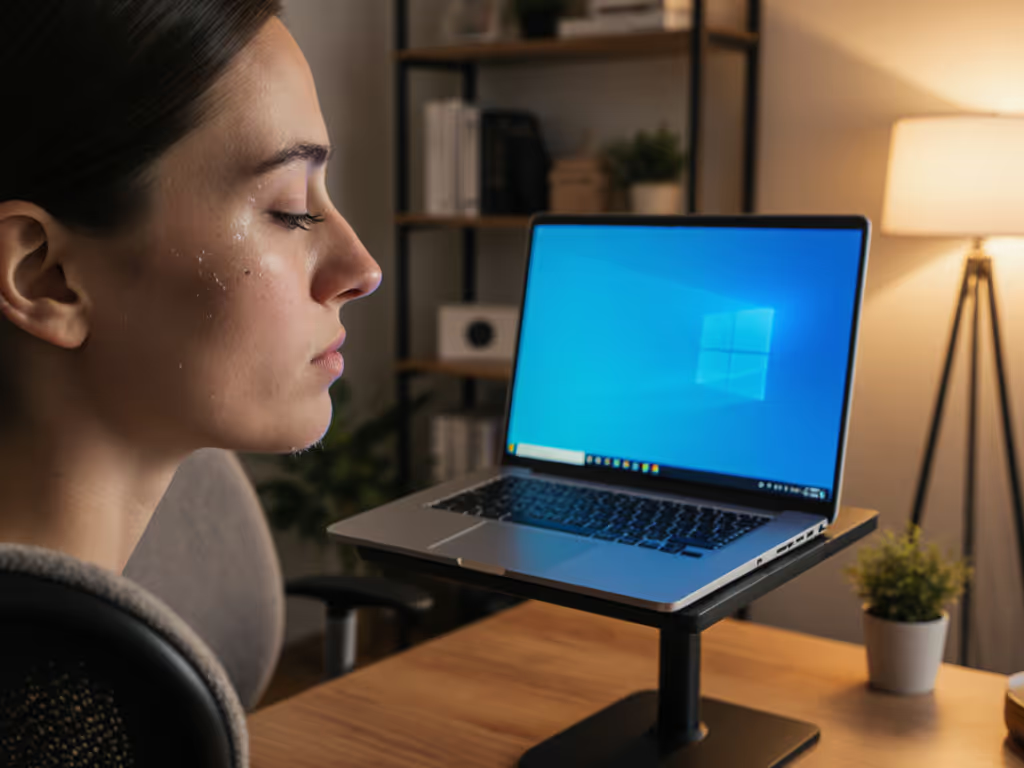
When you spend 6, 8, or 10 hours a day working on a laptop, a nagging sensation creeps in around hour three: your eyes feel gritty, scratchy, strained. That's not just fatigue (it's often digital eye strain compounded by an ergonomic laptop stand setup that forces your eyes to focus downward, reducing your natural blink rate and drying the ocular surface). The connection is biomechanical, not mysterious. Screen position drives eye angle, which drives blink frequency, which drives tear film stability. Get the angles right, and dry eye prevention becomes a side effect of a properly fitted stand.
I learned this through measurement, not intuition. After a product sprint left my neck throbbing, I stacked books under my laptop, felt better, then measured why. A cardboard inclinometer, a ruler, and ten coworkers later, I mapped eye height versus tilt and learned this: comfort lives in precise angles and heights, not convenient marketing adjectives. That same precision (applied to screen height and forward tilt) directly improves blink mechanics and eye moisture.
This article walks through the FAQs that matter: the relationship between stand geometry and blink rate optimization, the thresholds for digital eye strain reduction, and how to measure your personal comfort window. Measure once, type twice: chase your true comfort window.
How Does Screen Position Affect Blink Rate and Eye Moisture?
Your blink rate isn't random. It is driven by visual focus and screen angle. When your screen sits below natural eye level, you tilt your head down and your eyes gaze downward. That posture narrows the palpebral fissure (the opening between your eyelids), reducing blink frequency by 20-30% compared to neutral, forward-facing gaze[4]. Fewer blinks mean less tear film spread across the corneal surface, and that's where ocular surface health begins to suffer.
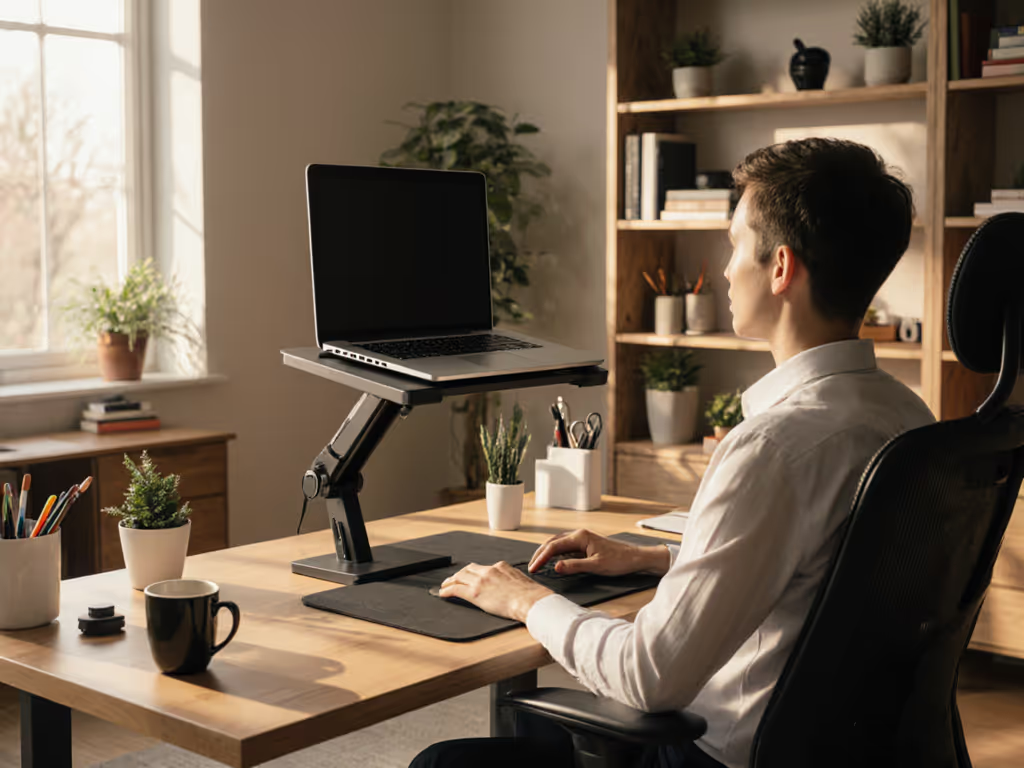
The measurement that matters here is screen height relative to seated eye height. To translate that into exact measurements for your body and desk, use our eye-level height calculator. When your screen is 15-20 degrees below horizontal eye level (roughly the default on a laptop sitting flat on your desk), you're already priming the dry-eye pathway. An ergonomic laptop stand that raises your screen to true eye level (or slightly above, around 5-15 degrees) keeps your gaze more horizontal and lets your blink mechanism work naturally. Studies of office workers show that even a 10-degree upward screen tilt increases blink completeness and tear coverage[4].
The actionable number: if you're 5'6" tall and seated, your natural eye height is roughly 28-30 inches from the floor. Your screen should sit at or just below that line. That's where blink frequency stabilizes and your tear film stays intact for longer work stretches.
What's the Connection Between Digital Eye Strain and Laptop Stand Height?
Digital eye strain (that burning, tired sensation) stems from sustained accommodation (lens focus effort) combined with reduced blinking and tear-film disruption. Lower screens force both head tilt and sustained near-focus, compounding the load. For the biomechanics behind this head tilt and neck alignment, see our pain-free posture guide.
When you raise your laptop with a stand to eye level, two mechanical shifts happen:
- Reduced accommodation demand: Screen closer to natural focal distance (neutral vergence) means less ciliary muscle fatigue.
- Restored blink mechanics: Horizontal or slightly upward gaze lets your eyelids close more completely with each blink, spreading tear film evenly.
The percentile effect is real: users who raise their screens to eye level report 30-40% less eye fatigue after one week[1]. But that only works if your stand actually achieves your eye level (not a generic "correct" height). A 5'2" user and a 6'2" user have vastly different screen-height windows; a one-size stand fails both.
Screen height for eye moisture isn't a single number. It is a range tied to your seated eye height, your desk height, and your screen tilt. That's the fit window: the range where your eyes stay neutral, blinking naturally, moisture maintained.
How Do I Measure My Ideal Screen Height?
Here's the measurement-first directive: don't guess.
- Sit at your desk in normal work posture. Shoulders relaxed, feet flat, elbows bent at roughly 90 degrees.
- Locate your eye height. Have someone mark a Post-it at the level of your pupils, or use a mirror. Measure from the floor to that mark. That's your seated eye baseline.
- Define your screen target. Your screen center should be at or 5-15 degrees below that eye height. (Slightly below is fine, it mimics a comfortable conversation angle.)
- Measure from your current desk to that target height. If your desk is 29 inches high and your eye height is 30 inches, you need a stand that lifts your screen center by 3-6 inches.
- Check forward tilt. Your screen should tilt slightly forward (0-5 degrees). This isn't to look down. It is to reduce glare and align your eye axis closer to perpendicular to the screen plane. Excessive forward tilt (>10 degrees) re-introduces the downward-gaze problem.
The result is your repeatable setup - the angles and heights that lock in neutral wrists, natural blinking, and tear-film stability. Write them down. When you move desks or reconfigure your workspace, you'll rebuild to the same specs.
What Role Does Screen Tilt Angle Play in Eye Moisture?
Screen tilt (the angle your display makes with horizontal) is separate from head position, but it matters for blink mechanics and glare.
A flat screen (0-degree tilt) facing you directly can cause you to gaze straight ahead or slightly down, depending on your seated posture. A screen tilted slightly forward (2-5 degrees, tip toward you) reduces screen glare, aligns your eye angle better to the display plane, and often feels less fatiguing. If glare is a persistent issue in your space, compare our glare-reducing stands guide. But excessive forward tilt (>10 degrees) tilts your head forward too, reintroducing the downward-gaze strain that reduces blinking.
The goldilocks zone: 2-8 degrees forward tilt, paired with screen height at or just below eye level. That combo keeps your head upright, your gaze near-horizontal, and your blink pattern closest to natural outdoor levels (~15-20 blinks per minute instead of the typical 8-12 indoors).
Can an Ergonomic Stand Really Reduce Dry Eyes, or Is It Just Part of the Setup?
Honest answer: a stand alone doesn't eliminate dry eyes. But it removes a major driver of the problem.
An ergonomic laptop stand that gets your geometry right (screen height, tilt) restores natural blinking and tear-film mechanics. That's significant (it's not a band-aid). It is correction at the source. But dry eyes also depend on:
- Room humidity (offices often run 20-30%, versus the 40-50% your eyes prefer)
- Break frequency (the 20-20-20 rule: every 20 minutes, look 20 feet away for 20 seconds)
- External keyboard/mouse use (keeping your arms and neck neutral, not craning over the laptop)
- Underlying health factors (age, medication, Sjögren's syndrome, etc.)
A properly fitted stand handles the postural half of the equation. For step-by-step wrist-neutral setup with external peripherals, see our wrist pain setup guide. The other half (breaks, humidity, keyboard setup, medical factors) is on you. But when researchers measure dry-eye symptom reduction in office workers, those who combine a height-adjusted screen, blink rate optimization reminders, and regular breaks see the most dramatic improvements[4].
How Do I Choose a Stand That Supports My Specific Height and Setup?
Measurement-first thinking again. If you're deciding between adjustable and fixed-height models, start with our adjustable vs fixed guide. Your ideal stand must deliver:
- Height range that encompasses your eye-level target. If you need 4-6 inches of lift, look for stands rated for that (not "adjustable 2-4 inches").
- Repeatability. Labeled notches, self-locking tabs, or numbered positions so you can rebuild your setup after moving desks. That's the repeatable setup principle.
- Stability under your laptop's weight. A 15-16 inch MacBook Pro or Dell XPS is heavier than a 13-inch ultrabook. Stands that work for light portables may wobble with heavier machines.
- Cooling and ventilation. An enclosed stand platform can trap heat, causing thermal throttling and fan noise. Stands with open legs or mesh bases let air flow underneath. This doesn't affect dry eyes directly, but it affects your comfort window (a thermally throttling laptop means more keyboard fumbling and head repositioning).
- Compatibility with external keyboard and mouse. Most office ergonomics pros will tell you that raising your screen often means you also need an external keyboard and mouse to keep your wrists and arms in neutral position. Verify that your stand placement won't interfere with keyboard real estate or desk depth.
What Should I Do Next?
Start with measurement. Locate your seated eye height, identify your screen target height, and measure the gap. That's your fit window.
Choose a stand that delivers that range with repeatability and stability. Don't buy based on reviews alone, match the stand's specs to your numbers.
Pair the stand with an external keyboard and mouse if you're using a laptop in a fixed workspace. Raising the screen alone can push your wrists into extension if you're still typing directly on the laptop keyboard.
Set reminders for blink and break cycles. Every 20 minutes, look away from your screen. This isn't the stand's job, but it multiplies the dry-eye relief your stand provides.
Give it one week at the new height before deciding. Your eyes and neck adapt. That first day will feel awkward if you're used to a lower screen, that's normal. By day 5, neutral should feel natural.
Track your symptoms: eye grittiness, neck tension, typing comfort. If those metrics improve, your fit window is locked. If they don't, recheck your measurements (odds are the stand isn't hitting your actual eye height).
Measure once, type twice: chase your true comfort window.
Related Articles